Local Admins Report in Active Directory
Description
Section titled “Description”The Local Admin Report Tool is a security-focused utility designed to identify and report all users and groups with local administrator privileges across Windows computers in an enterprise environment. Local admin rights are frequently over-assigned or forgotten over time, creating potential attack paths and increasing the risk of lateral movement. Ideal for IT security teams, auditors, and system administrators, the Local Admin Report provides visibility, consistency, and enhanced security across all Windows systems in the environment.
Requirements
Section titled “Requirements”- WMI needs to be open: This is blocked by default if you have the windows firewall enabled.
- Administrator rights on the target computers
Features
Section titled “Features”- Audit Local Administrator group
- List users and groups with admin rights
- Inventory all local groups
- Get details about local users (last logon date, password last set, account status)
- Remove local users
- Remove members from local groups
- Show nested groups
- Scan entire domain or a list of computers
How to
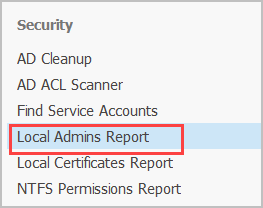
Section titled “How to”Step 1. Click on “Local Admins Report”
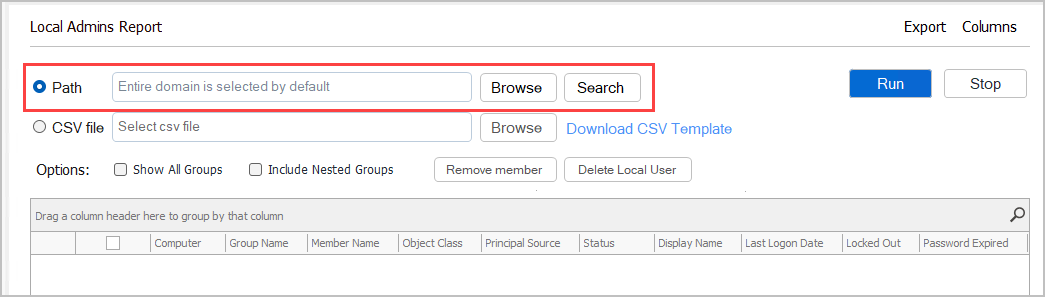
Step 2. Click “Browse” to select a Path or leave blank to scan the entire Active Directory enviornment.
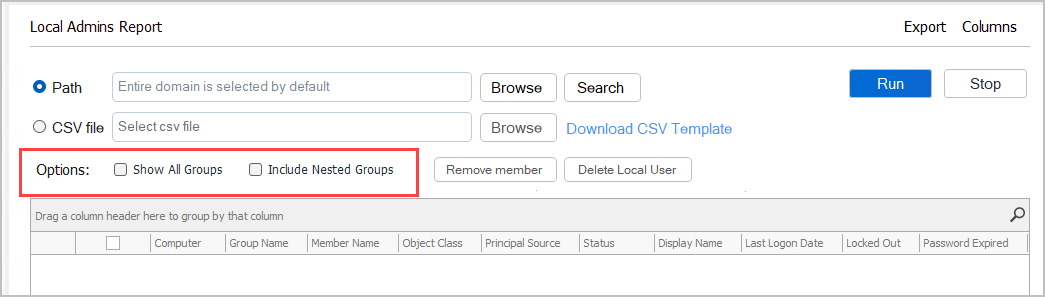
Step 3. Select Search options
-
Show All Groups
- By default the tool only scans the adminitrator group. To inventory all local groups select this box.
-
Include Nested Groups
- This option will show the members of any group that is in the local administrators group.
Step 4. Click “Run” and review the results
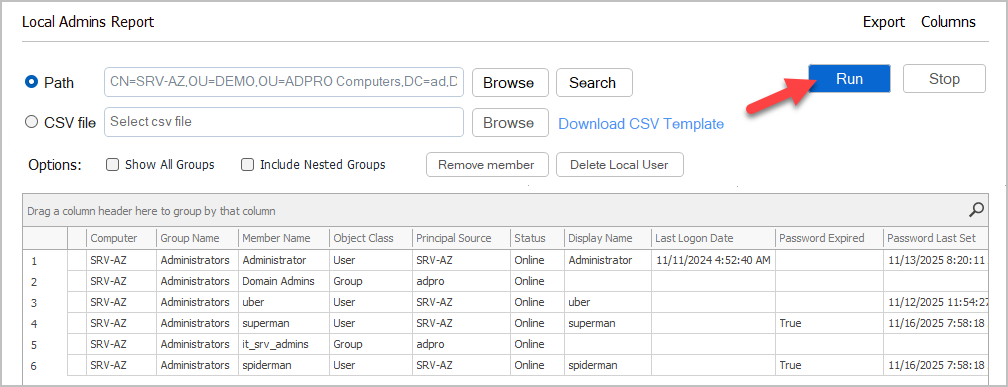
The report includes the following columns:
- Computer
- Group Name
- Member Name
- Object Classs
- Principal Source - Where an account originates from (local or Active Directory)
- Status
- Display Name
- Last Logon Date
- Password Expired
- Password Last Set
- Password Expiration Date
- Account Enabled
- distinguishedName
Example 1
Section titled “Example 1”In the example below, you can see there are 4 users and 2 groups that are a member of the local administrator group on server srv-az.
The 4 users are local users becuase the principal source is the server. The two groups are domain groups becuase the source is my domain.

Example 2 - Nested Groups
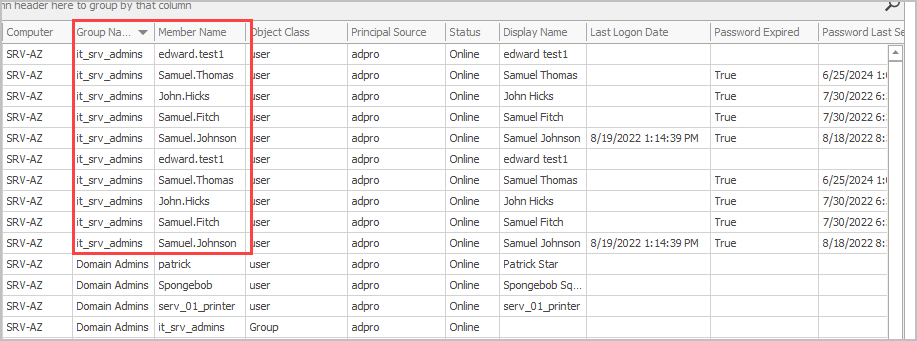
Section titled “Example 2 - Nested Groups”In this example, I selected the nested groups option. You can now see it shows the members of the groups.
Example 3 - All Groups
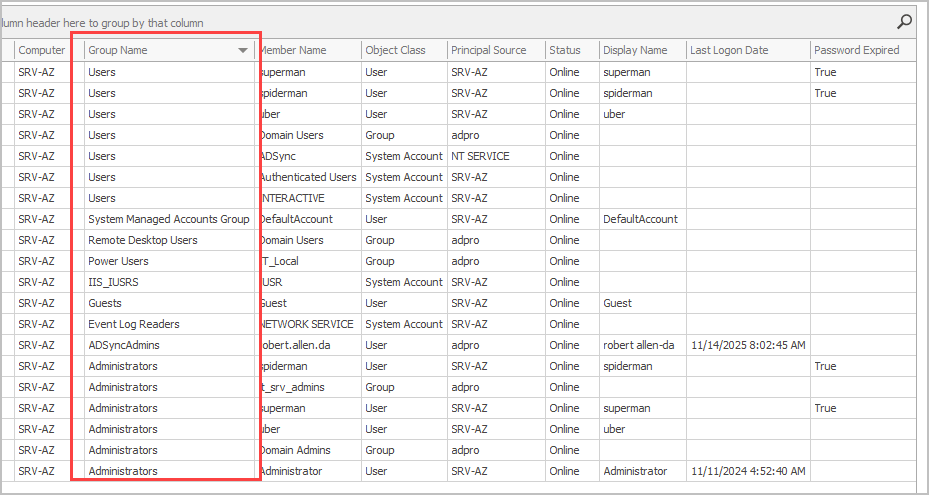
Section titled “Example 3 - All Groups”In this example, I selected the all groups option. Now I can see members of all the other local groups such as Remove Desktop users, Power Users and so on.