
Active Directory Cleanup Guide
Description
Section titled “Description”The Active Directory Cleanup Tool is designed to identify, report, and remediate stale, unused, user and computer objects in Active Directory. By collecting and analyzing key account and group attributes, the tool simplifies AD hygiene, security hardening, and compliance maintenance.
Features
Section titled “Features”- Easily find inactive users and computers
- List all disabled users
- Identify inactive accounts by last logon
- Identify inactive accounts by password last set date
- List all expired users
- List users with no logons
- List empty groups
- Delete, disable, or move stale accounts
- Automate cleanup with the built in scheduler
How to
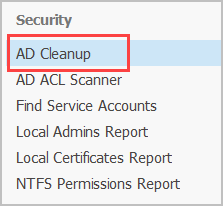
Section titled “How to”Step 1. Click on “AD Cleanup”
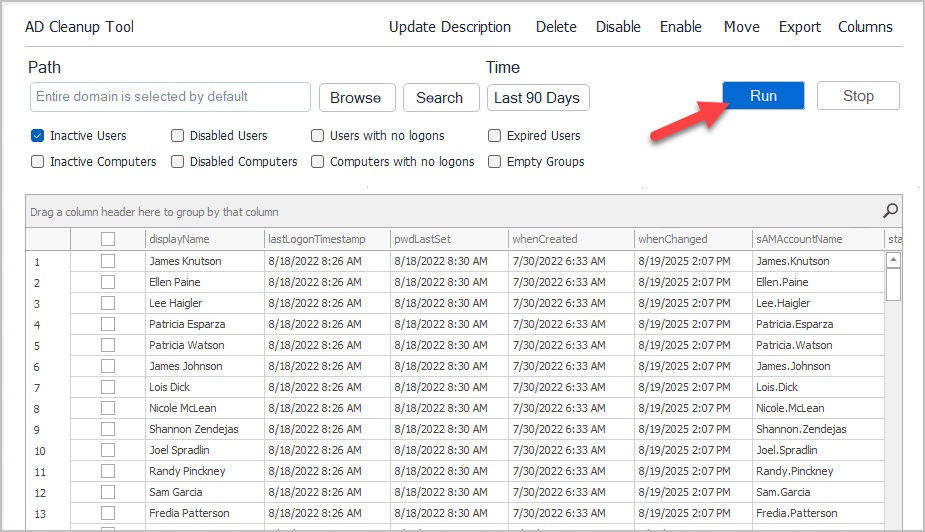
Step 2. Choose seach options
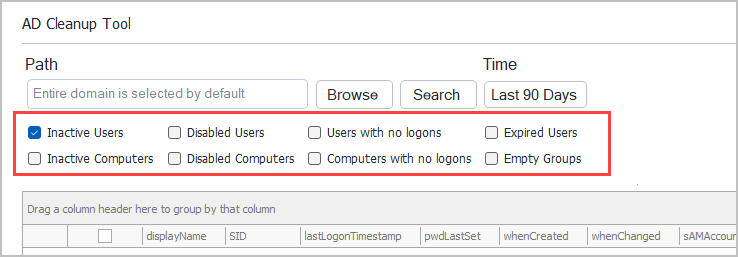
- Inactive users - Finds inactive users by lastLogonTimestamp, default is last 90 days.
- Inactive computers - Find inactive computers by lastLogonTimestamp, default is last 90 days.
- Disabled Users - Lists all user accounts that are disabled.
- Disabled computers - List all computer accounts that are disabled.
- Users with no logons - Lists all users were the lastLogonTimestamp has never been updated.
- Computers with no logons - Lists all computers were the lastLogonTimestamp has never been updated.
- Expired Users - Lists all expired user accounts.
- Empty groups - List all groups that have no members
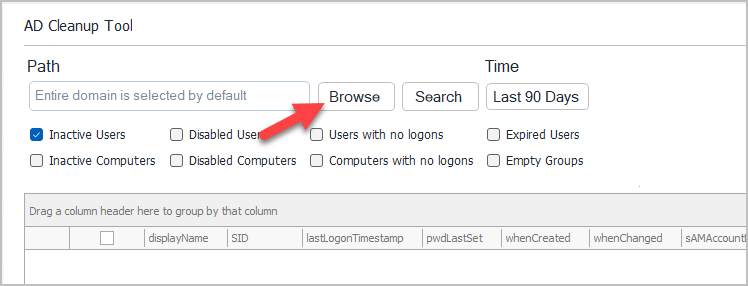
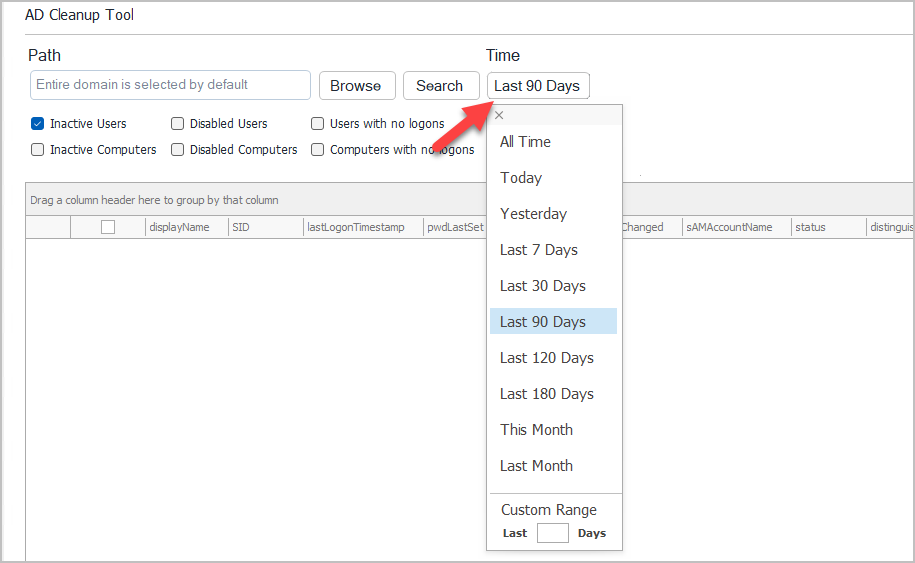
Step 3. Choose Path and Time
By default, the toolkit will search the entire domain. Click browse if you want to search a specific OU or group.
If you want to change the time frame, click the Time button and choose a different time.
Step 4. Click “Run” to generate the report
When you click run the toolkit will search Active Directory for inactive accounts and list them in the grid.
Step 4. Select Cleanup Actions
Select the accounts you want to cleanup and then choose an action.
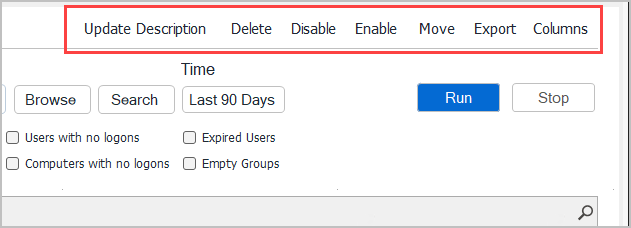
- Update Description - This will allow you to set the description field on the object in AD.
- Delete - This will delete the selected objects.
- Disable - This will disable the selected objects. You can also set the description when disabling the accounts.
- Enable - This will enable the selected objects.
- Move - Move the selected objects to another OU.
- Export - Export the generated report to csv, excel or pdf file.
Automate Active Directory Cleanup
Section titled “Automate Active Directory Cleanup”The AD Cleanup tool has three options for automating the cleanup of Active Directory Accounts.
- Inactive Accounts
- Automate finding inactive accounts
- Disable, move, set descriptions and report on inactive accounts.
- Delete Accounts
- Automate deleting inactive accounts
- Disabled Accounts
- Run actions on disabled accounts
Steps to Auto Disable Inactive Accounts
Section titled “Steps to Auto Disable Inactive Accounts”- Open the AD Pro Toolkit
- Click on “Others” and then “Scheduler”.
- Select “Inactive Accounts” from the dropdown
- Click “Add” on the schedule page
- Enter a task name and set the credentials. Click “Next”
- Set a schedule frequency, daily, weekly or monthly
- Set the conditions (Path is required)
- Select one or more actions
- Choose output options (email or save to csv)
- Click Save
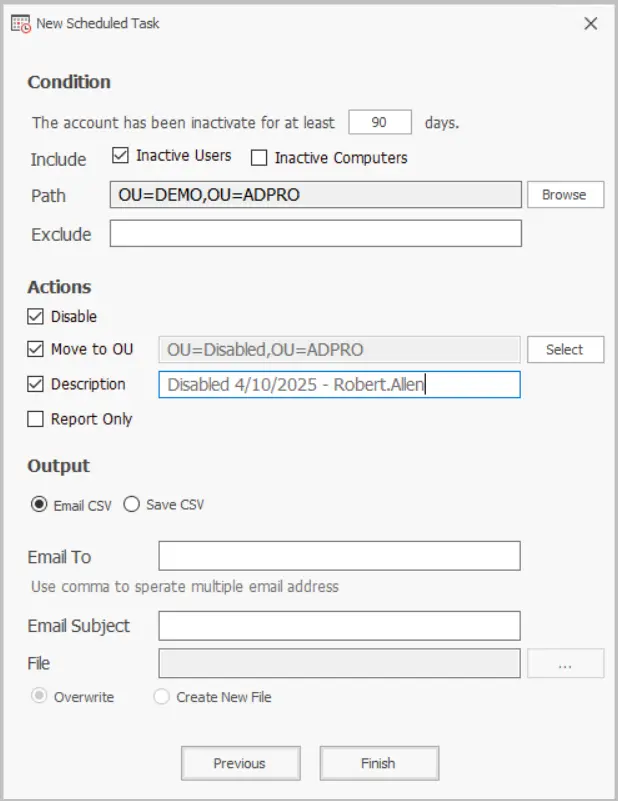
Below is a screenshot of the scheduled task. This task is configured to find accounts that have been inactive for at least 90 days. The task will then disable the account, move them to an OU called Disabled, set a description and email the results.
Conditions
Section titled “Conditions”The condition section lets you define details for identifying inactive accounts.
- Inactivity time: The account is inactive for at least x days. Default is 90 days, you can change this to any time you need. This uses the lastLogonTimestamp to identify stale accounts.
- Include: Choose to find inactive users, computers or both.
- Path: Select an OU or choose the entire domain
- Exclusions: Add accounts to exclude from being automatically disabled. Use the accounts samaccountname, separate accounts with a comma.
Actions
Section titled “Actions”This section you configure what actions to run on the inactive accounts.
- Disable: Check this box to auto disable accounts
- Move to OU: Enables moving accounts to another OU
- Description: Adds a description to the account
- Report only: Report only mode sends an email with the identified accounts, but no actions are run.
Steps to Auto Delete Inactive Accounts
Section titled “Steps to Auto Delete Inactive Accounts”- Open the AD Pro Toolkit.
- Click on “Others” and then “Scheduler”.
- Select “Delete Accounts” from the dropdown.
- Enter a task name and set the credentials. Click “Next”.
- Set a schedule frequency, daily, weekly or monthly.
- Set the conditions (Path is required).
- Select one or more actions.
- Choose output options (email or save to csv).
- Click Save.
Conditions
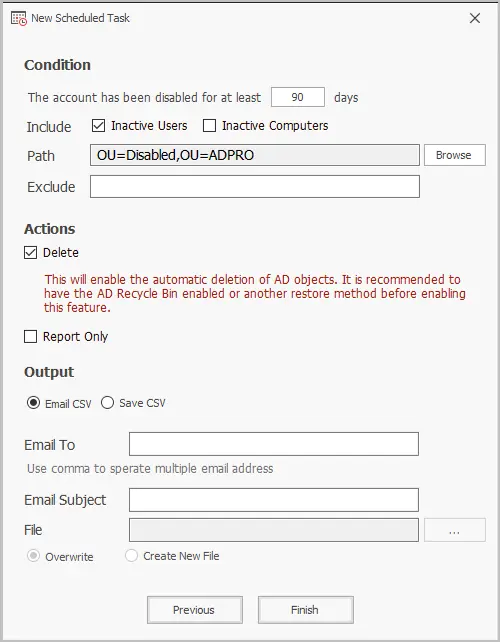
Section titled “Conditions”The condition section lets you define what accounts to auto delete.
- Disable time: Set the number of days the account has been disabled.
- Include: Choose to auto delete users, computers or both.
- Path: Select an OU or choose the entire domain. Accounts will only be auto deleted from the selected path.
- Exclusions: Add accounts to exclude from being automatically deleted
Actions
Section titled “Actions”This section you configure what actions to run on the inactive accounts.
- Delete: Check this box to enable auto delete of AD accounts.
- Report only: Report only mode sends an email with the identified accounts, but no actions are run.