Create Custom Active Directory Reports
Description
Section titled “Description”The Custom Active Directory Reports feature lets administrators create tailored reports based on specific attributes, filters, and criteria. It provides flexibility to focus on the data that matters most, enabling precise insights and actionable intelligence for your directory environment.
How to Create Custom AD Reports
Section titled “How to Create Custom AD Reports”Step 1. Click on Reports > Custom Reports

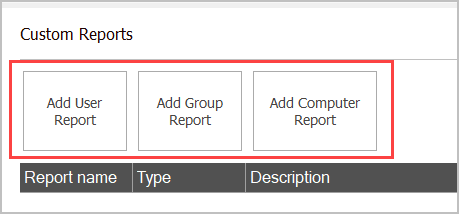
Step 2. Select a Category
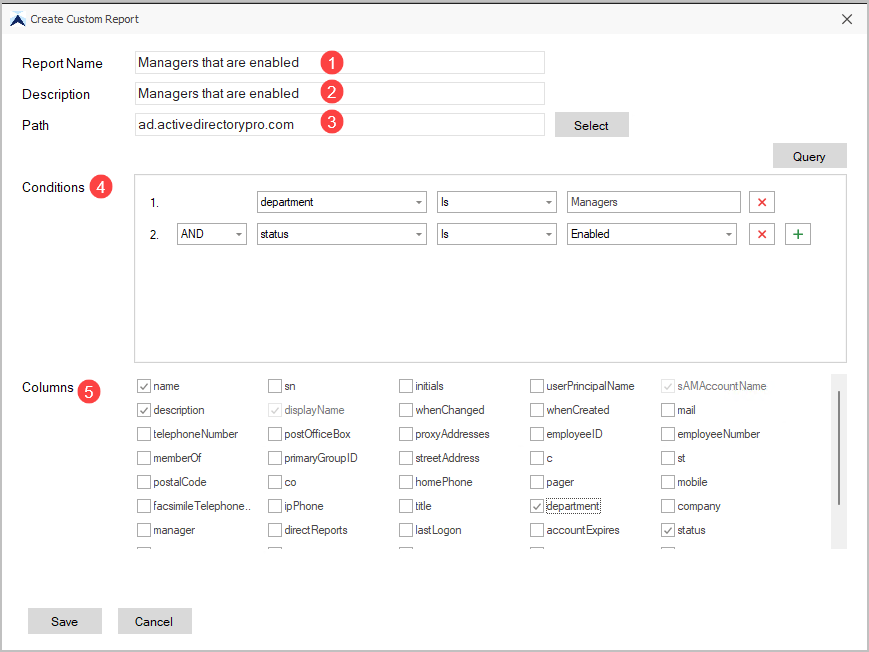
Step 3. Configure the report
- Report Name: Give the report a name
- Description: Give the report a description
- Path: Select the path you want to report on (OU or domain)
- Add Conditions: You can add multiple conditions
- Columns: Select the columns you want to include in the report.
Click “Save”
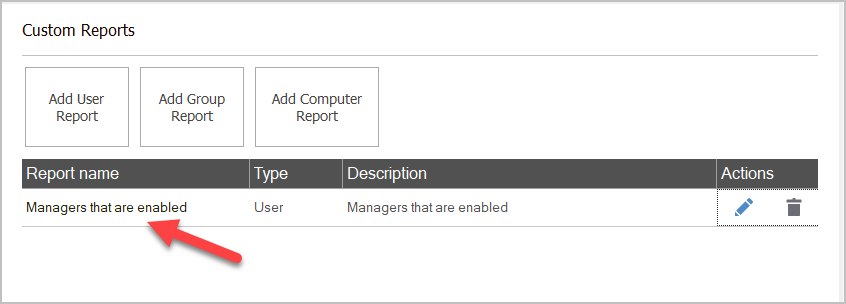
You can then access and run your report from the custom reports page.